
Samsung Notes Workout Template: Build One That Works
Quick answer: Samsung Notes has no built-in workout template, so you build your own. Create one note per training day, write each exercise on its own line as Exercise weight x reps, and pin it to the top of your list. Duplicate that note each session rather than editing it, so you keep a dated history you can compare.
You already log your workouts in Samsung Notes. It opens instantly, it syncs to your tablet, and nothing gets in the way between sets.
Then, three months later, you want to know whether your bench has actually moved and you are scrolling through forty untitled notes trying to find March.
The app is fine. The structure is what is missing.
Does Samsung Notes have a workout template?
Samsung does not ship any fitness or workout templates with Samsung Notes.
What the app does give you, according to Samsung's own support documentation, is folders, search, password-locked notes, export to formats including PDF and Word, S Pen handwriting, and syncing through your Samsung account. In April 2026 Samsung added table support to Notes, which changes what a template can look like.
So you have two workable options, and the choice matters more than it sounds.
Plain text lines. Fastest to write, fastest to read, works with one thumb while holding a dumbbell.
A table. Neater on screen, much slower to fill in at the gym, and awkward to duplicate.
For most people, plain text lines beat a table in Samsung Notes, for the same reason paper notebooks beat spreadsheets in the gym. You are standing up, out of breath, with 60 seconds of rest left.
What should a Samsung Notes workout template contain?
Four things, and nothing else:
- The date, in the title, so search finds it
- The session name, so you know which day it was
- One line per exercise, with weight and reps
- A short note line for anything that changed
Here is what that looks like as a note you can copy:
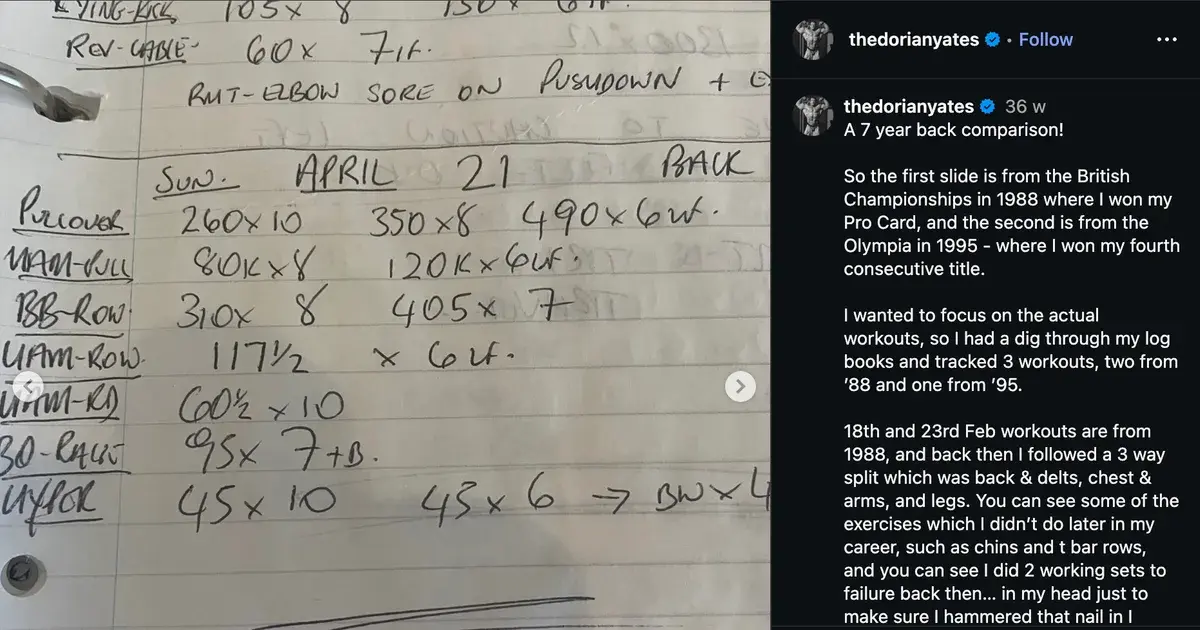
2026-01-14 Push Day

Bench press 80x8, 80x8, 80x7
Overhead press 45x10, 45x9, 45x8
Incline DB press 26x12, 26x11, 26x10
Cable fly 15x15, 15x14
Triceps pushdown 30x15, 30x13, 30x12

Notes: bench felt heavy, slept badly
That is the whole template. Six lines of exercises, a title, and a note.
Why the date goes first in the title: Samsung Notes sorts by modified date by default, which reorders your list every time you open something. A YYYY-MM-DD prefix means the title itself is sortable and searchable, so typing "2026-08" in search pulls up the whole month.
If you want a full breakdown of the shorthand, our guide on workout shorthand explained covers what 3x8, @2RIR and the rest mean.
How do you set it up in five minutes?
- Create a folder called Workouts. Tap the folder icon, then add. Keeps training out of your shopping lists.
- Make one template note per training day. If you run push pull legs, that is three notes:
TEMPLATE Push,TEMPLATE Pull,TEMPLATE Legs, each with the exercise names but no numbers. - Pin the templates to the top. Long press the note, then pin. They stay above your history.
- Before each session, duplicate the template. Long press, copy, then rename the copy with today's date.
- Fill in the numbers as you train. One line at a time, between sets.
The duplicate step is the one people skip, and skipping it is what destroys the log. If you edit the same note every week, you overwrite last week. A month later you have one note and no history.
Should you use the S Pen instead?
If you have a Galaxy tablet or a Note-style phone, S Pen handwriting is pleasant to use and it keeps the notebook feel that got you tracking in the first place.
At the gym, it is slower than typing and needs two hands. Handwriting suits planning the week at home better than recording sets between them.
What about tables?
Now that Samsung Notes supports tables, a grid template is possible:
| Exercise | Set 1 | Set 2 | Set 3 |
|---|---|---|---|
| Bench press | 80x8 | 80x8 | 80x7 |
| Overhead press | 45x10 | 45x9 | 45x8 |
| Incline DB press | 26x12 | 26x11 | 26x10 |
A table template looks better than plain text lines. It is worse to use at the gym.
Tapping into individual cells on a phone screen with sweaty hands takes noticeably longer than typing a line. Tables are also harder to duplicate cleanly and awkward to read on a narrow screen.
Use a table if you plan sessions in advance on a tablet. Use plain lines if you fill it in at the gym.
How does Samsung Notes compare to other ways of tracking?
Samsung Notes does the capture part very well and the analysis part not at all.
| Physical Notebook | Samsung Notes | Traditional Gym App | Gym Note Plus | |
|---|---|---|---|---|
| Logging speed | Fast | Fastest | Slow, lots of tapping | Fastest |
| Flexibility | Total | Total | Locked to their exercise list | Total |
| Searchability | None | Text search only | Good | Good |
| Data visualization | None | None | Charts | Charts |
| Spotting a personal record | Manual | Manual | Automatic | Automatic |
| Works offline in a basement gym | Yes | Yes | Sometimes | Yes |
The row that eventually pushes people to change is data visualization. Six months of perfectly good notes still cannot tell you whether your squat trend is up, because text does not plot.
Our comparison of the best notes app for workout tracking covers how Samsung Notes stacks up against Apple Notes, Google Keep and the rest, and if you use both platforms, our Apple Notes workout template and Google Keep workout template guides use the same structure.
A simple starting plan
- Make the folder and the template notes tonight. Ten minutes, before your next session.
- Use the
YYYY-MM-DD Session nametitle format. It is the single change that makes your history searchable. - Duplicate, never overwrite. One note per session, always.
- Write per-set numbers, not summaries.
80x8, 80x8, 80x7beatsbench 3x8because it tells you what to beat. - Review the last four weeks on Sunday. Search the month, open the last four of a session type, and decide what goes up.
If you want the notes to turn into charts
Everything above works. It is what plenty of consistent lifters do, and it is faster than any structured app.
The habit is right. The limit is what happens after six months: hundreds of good lines that you cannot plot, cannot rank, and cannot search by exercise without reading every note.
Gym Note Plus is built for exactly this way of logging:
- Type your sets the way you already type them in Samsung Notes, with no dropdowns and no forms
- Weights and reps are parsed automatically into per-exercise charts
- Session notes stay attached to the workout instead of disappearing into a list
- Personal records are flagged as you hit them
- Existing notes import, so the history you already wrote comes with you
If you want to see what your current notes would look like as tracked data, paste a session into the free notes to workout translator. It takes about ten seconds and needs no account.
The best workout template is the one you can fill in with one thumb between sets. Structure it enough to search, then stop.
Frequently Asked Questions
Does Samsung Notes have a workout template?
Samsung Notes does not include any built-in workout or fitness templates. You create your own by making one note per training day containing the exercise names, then duplicating that note before each session and filling in weights and reps. Pinning the blank templates to the top of your notes list keeps them easy to find.
How do you make a workout log in Samsung Notes?
Create a folder called Workouts, then make one template note per training day listing the exercises. Title each session note with the date first, in the format 2026-01-14 Push Day, so search and sorting both work. Duplicate the template before each session and record each exercise on its own line as Exercise weight x reps.
Should you use a table or plain text for a Samsung Notes workout log?
Plain text lines are faster to fill in during a session, easier to duplicate and more readable on a phone screen. Tables, added to Samsung Notes in 2026, look tidier and suit planning sessions in advance on a tablet. Most people logging between sets at the gym are better served by plain lines.
Can you sync Samsung Notes workout logs to a computer?
Samsung Notes synchronises through your Samsung account, so notes written on a Galaxy phone appear on other devices signed in to the same account. Samsung's documentation also covers exporting notes to formats including PDF and Word, which is the simplest way to move a training history onto a computer.
Is Samsung Notes good for tracking gym progress?
Samsung Notes is excellent for capturing workouts quickly and poor for analysing them. It records text instantly and works offline, but it cannot chart your lifts, calculate volume or flag personal records. Lifters typically outgrow it once they want to see whether a specific lift has trended upward over several months.
How do you find an old workout in Samsung Notes?
Use the search icon in Samsung Notes and type the exercise name or a date prefix such as 2026-01. Search finds notes by title and content, so it works reliably only when your note titles follow a consistent format. That is why putting the date at the start of every session title matters more than any other formatting choice.
Final Takeaways
- Samsung Notes ships no workout template. Building your own takes about ten minutes.
- Date-first titles are the highest-value habit.
2026-01-14 Push Daymakes six months of notes searchable. - Duplicate the template, never edit it. Overwriting the same note deletes your history one session at a time.
- Plain lines beat tables at the gym. Reserve the new table support for planning on a tablet.
- Text captures brilliantly and analyses not at all. That gap is the reason most people eventually move the same habit into something that charts it.

Josh Ibbotson
Josh is the creator of Gym Note Plus, building tools that make workout tracking as simple as taking notes.
Ready to try it out?
Download Gym Note Plus and start tracking your workouts the way you want.
Download on App Store