

How to Use Workout Templates in Gym Note Plus
Quick answer: In Gym Note Plus, open a new note with the + button, tap the stacked cards icon at the right of the bottom toolbar, then tap New. Name the template, type the exercises you repeat every week, and save with the checkmark. Tapping it later drops that text into a note and names the workout for you.
If you log in a notes app, you already have a template. It is the last push session you typed out, sitting three weeks back in your note list, waiting to be copied and pasted.
The copy and paste is the annoying part. You scroll, you find it, you copy it, you delete last time's numbers, and you start typing. Templates in Gym Note Plus turn that into one tap.
What is a template in the app?
A template is a name plus a block of text. That is genuinely all it is. The name might be "Push Day" and the text might be four lines of exercises with the weights you expect to use.
It is not a program or a structured plan. The app does not store your sets and reps as data inside a template, and it will not count exercises for you or check that the format is right. Whatever you type in the body is what you get back later.
That sounds basic until you see what it buys you. The template body is your starting text, so you spend the session overwriting numbers instead of typing exercise names. And the template name becomes the name of the workout, so your history stops being a list of guessed titles.
A template holds no dates. It does not know what day it is, it does not schedule anything, and it will not tell you which session is due next. That job belongs to workout splits, which are a separate feature.
How do you create a template?
In Gym Note Plus, templates live inside the note screen rather than in a settings menu, because that is where you use them.
Step by step
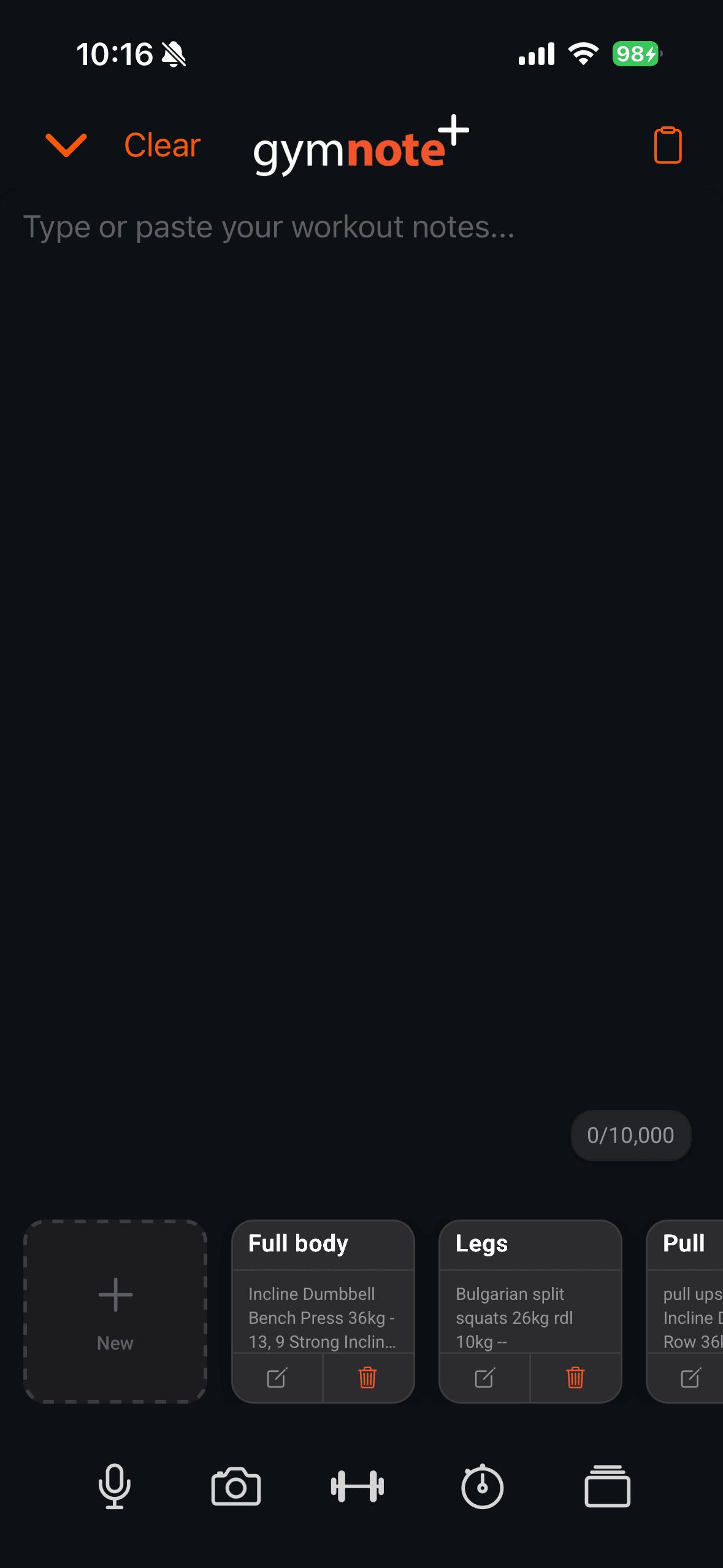
- Tap the + button in the middle of the tab bar to open a new note.
- Tap the stacked cards icon at the right end of the bottom toolbar. A row of template cards slides up.
- Tap the New card.
- Type a name into Template name.
- Type your session into Write your workout template here....
- Tap the checkmark in the top right.
A toast reading Template created confirms the save, and the new card appears in the row.
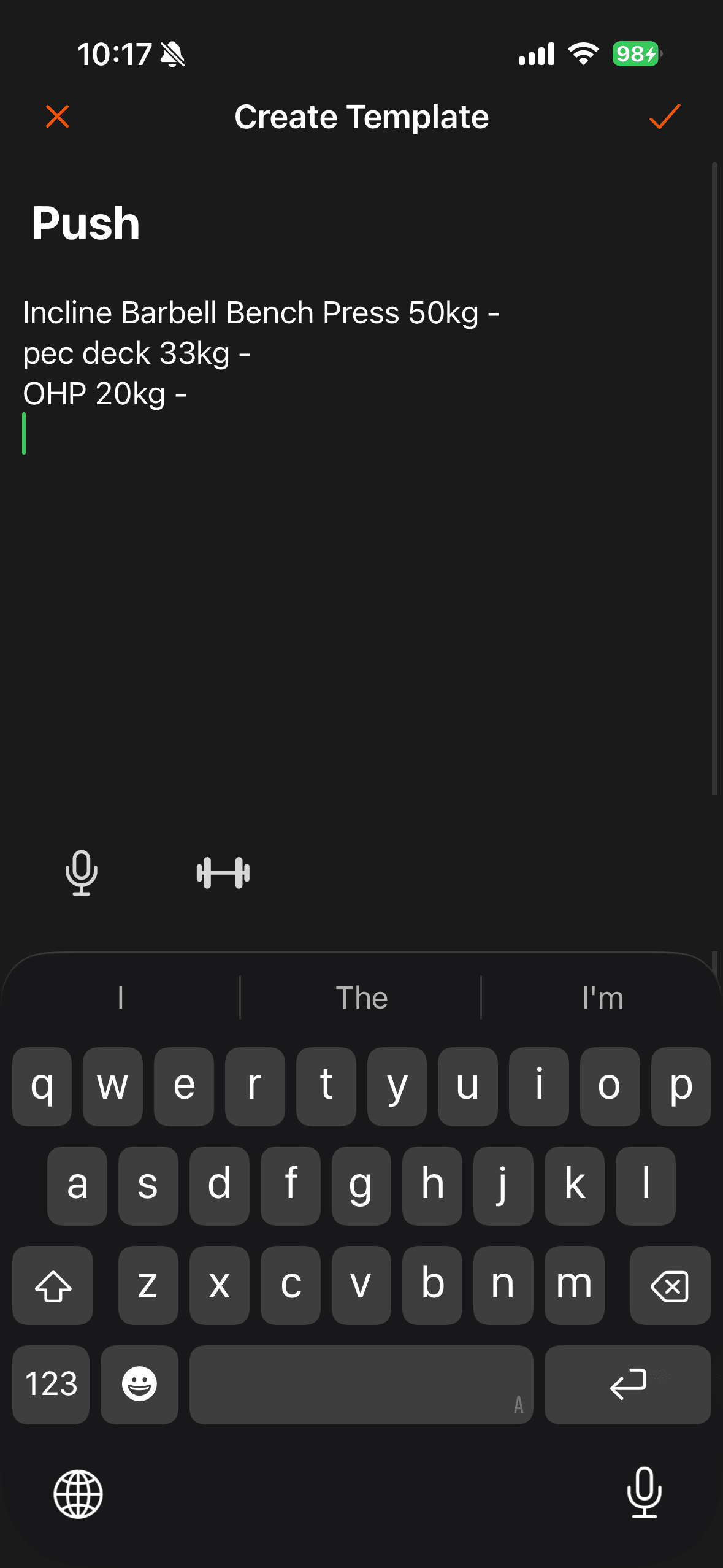
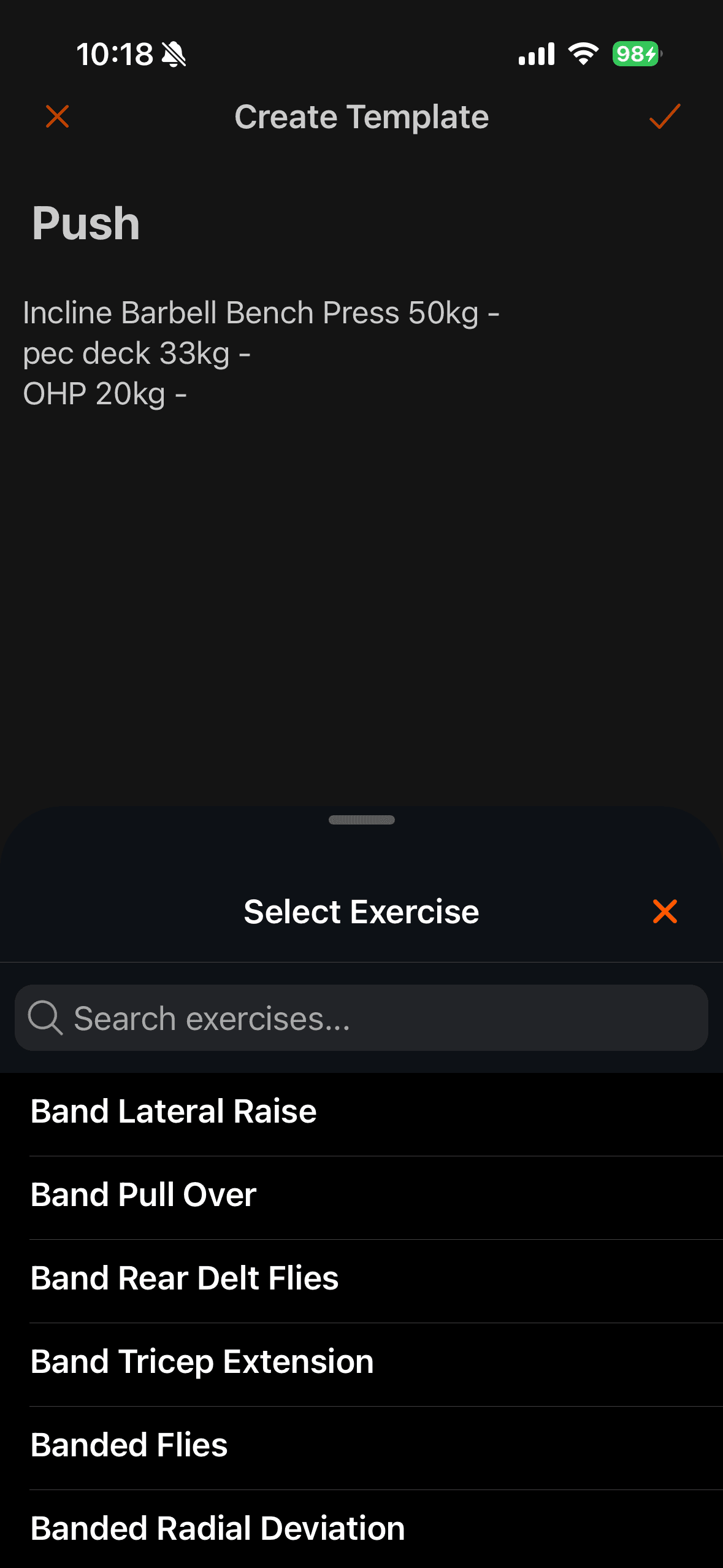
The editor footer has two shortcuts. The microphone dictates into whichever field you last tapped, so you can talk the session in. The barbell icon opens a Select Exercise sheet with a search box over your whole exercise list, and picking one inserts it along with the numbers you last logged for it. That is the fastest way to build a template that already has realistic weights in it.
The save button does nothing until the form is valid. A template needs both a name and a body, and the name caps at 100 characters. There is no error message, so if the checkmark looks dead, one of the two fields is empty.
Free accounts get one template slot, and it is already taken. Every new account is created with a Demo Workout template in it. On a free account, tapping New opens the upgrade screen rather than the editor, because the slot is full. Editing the demo template into your own session works fine and keeps you on the free tier. Pro accounts get unlimited templates and a body limit of 10,000 characters instead of 500.
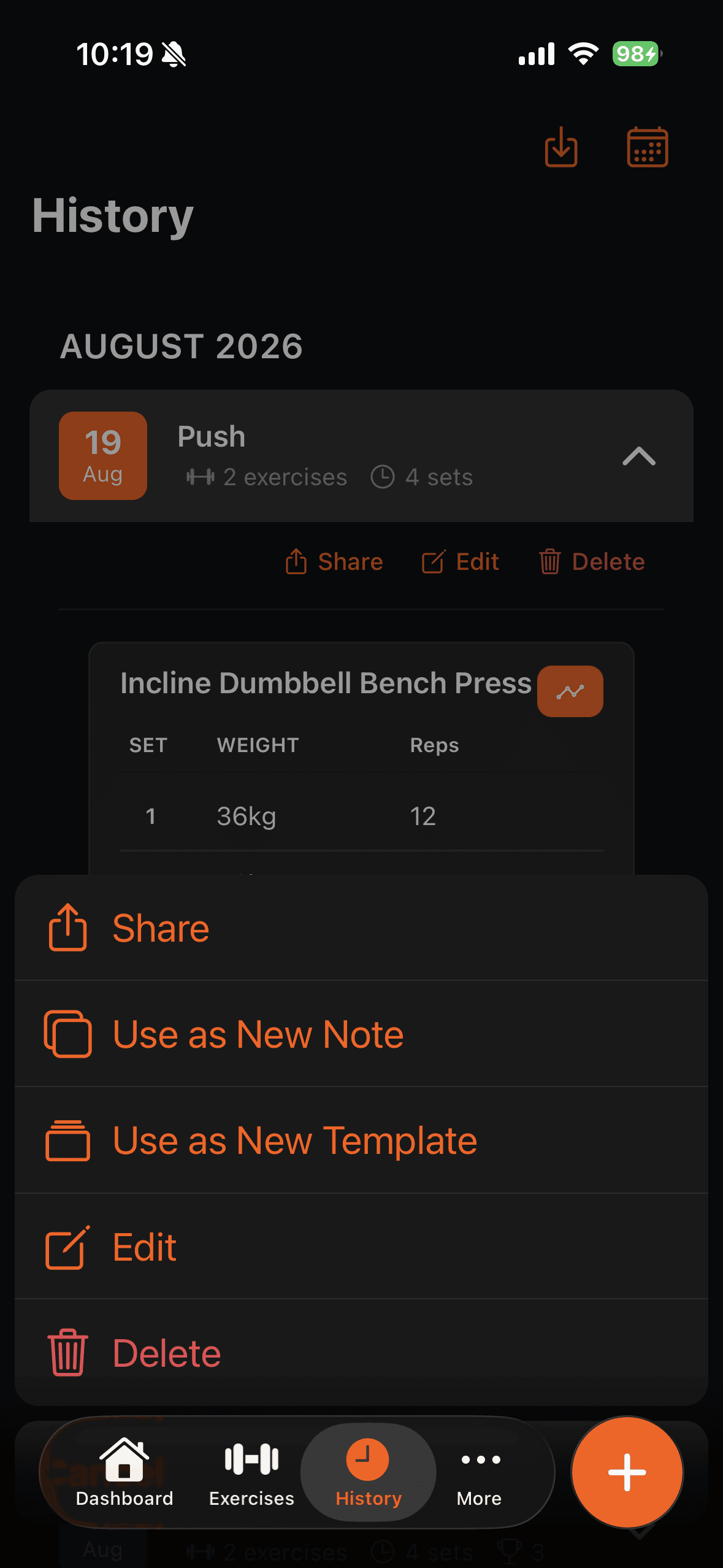
You can also build a template out of a session you already logged. Open a workout from History, open its action menu, and tap Use as New Template. The editor opens with the workout's title as the name and the original note text as the body, which saves retyping a session you clearly already like.
How does applying a template change the workout?
Tapping a template card does two things at once, and only one of them is visible.
The visible half: the text gets appended. The template body is added to the end of whatever is already in the note, on a new line. It is appended, not merged, so if you type first and tap the template second, the template text lands underneath what you wrote. Tap the template first.
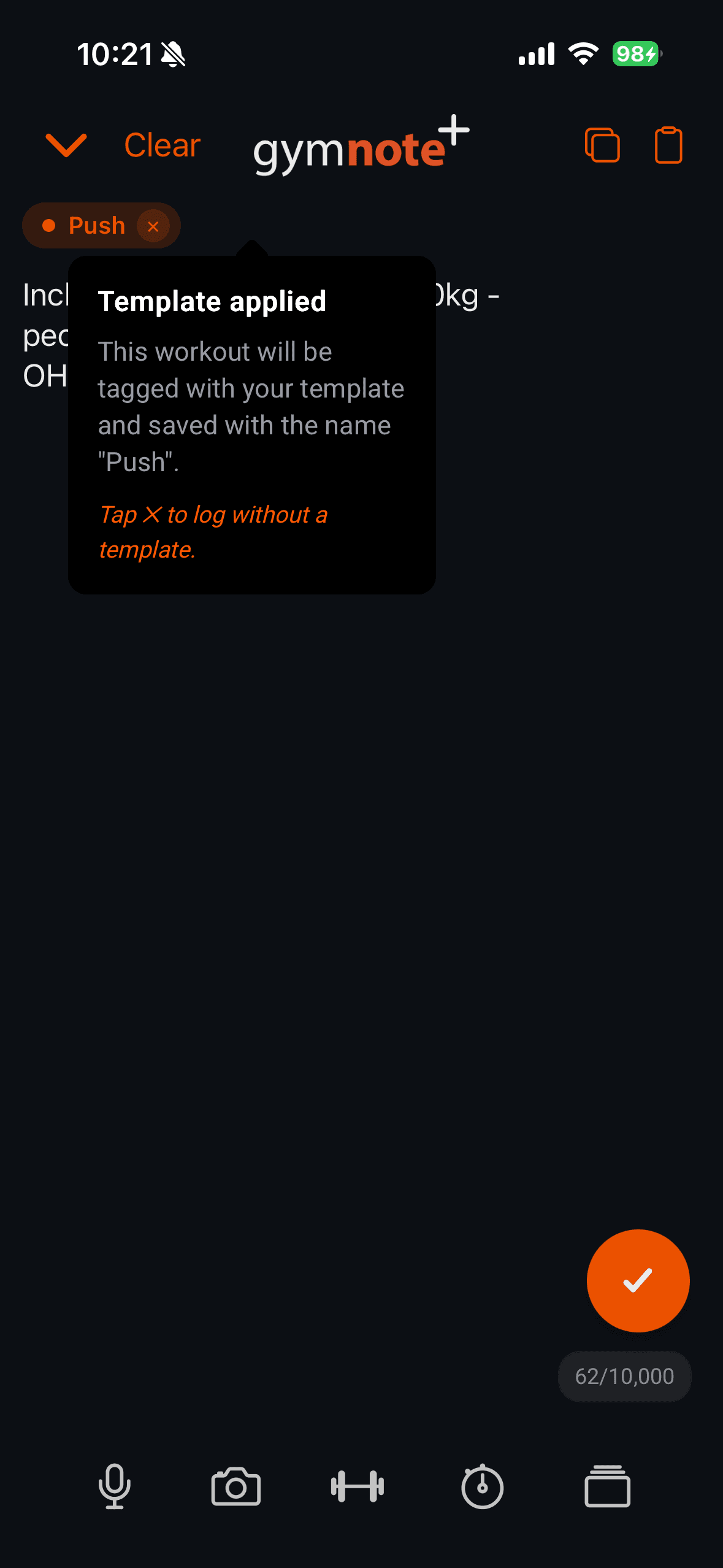
The hidden half: the note gets tagged. A small chip appears at the top of the note showing the template's name. Tap it and the app explains that the workout will be tagged with the template and saved under that name. That chip is the thing doing the work.
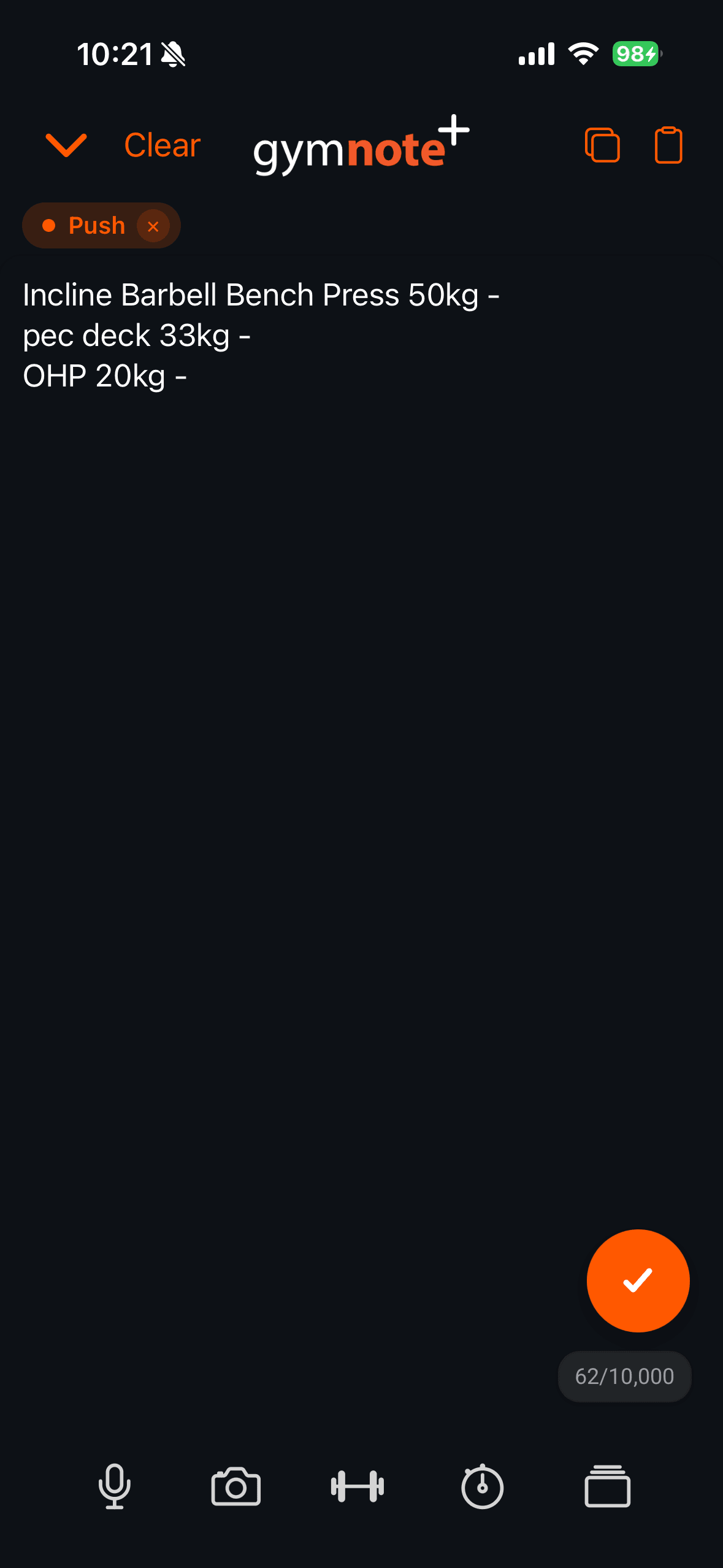
When you translate the note, the app reads your text as normal and works out the exercises, sets and weights. Then the template name overrides the title it would otherwise have guessed. So a note that opens with "incline db press 60s 10,10,8" gets filed under "Push Day" instead of whatever the AI decided the session was.
Without a template, the app names the workout itself, and marks the title with an AI Generated Title badge. That badge is the tell. If you see it on a session you meant to template, the chip was not applied when you hit translate.
Name your templates after your split days. This is the part worth getting right. The title a template gives your workout is also the text the app matches against the day names in your active workout split. Name a template "Push" while your split has a Push day and the session files itself under that day, which is what drives your split tracking and the Workout to Beat targets. Name it "Chest Day" while your split says "Push" and the workout still logs perfectly, it just never links to a split day. If you have not set a split up yet, do that first and name your templates to match its days.
The chip clears itself after a successful translation. The next note starts untemplated, so you tap the template again for the next session. Tapping the ✕ on the chip clears it early and logs the note without a template.
Here is what a template deliberately does not do:
- It does not feed the Workout to Beat widget on its own. That widget reads your split's day names, so it only picks your session up when the template's name matches one of them.
- It does not carry sets or reps as data. Numbers in the body are just text until you translate the note.
- It cannot be assigned to a day of your split.
- It is never read by the AI as a template. The text only reaches the parser because it was pasted into your note.
What does the finished workout show you?
Once the translation lands you get a Here's your workout! screen with a single card summarising the session.
The card carries a date chip, the workout title (your template's name, with no AI badge next to it), and a meta row counting the exercises and sets the app found in your text. If the session broke any records, a trophy and a personal record count appear alongside them.
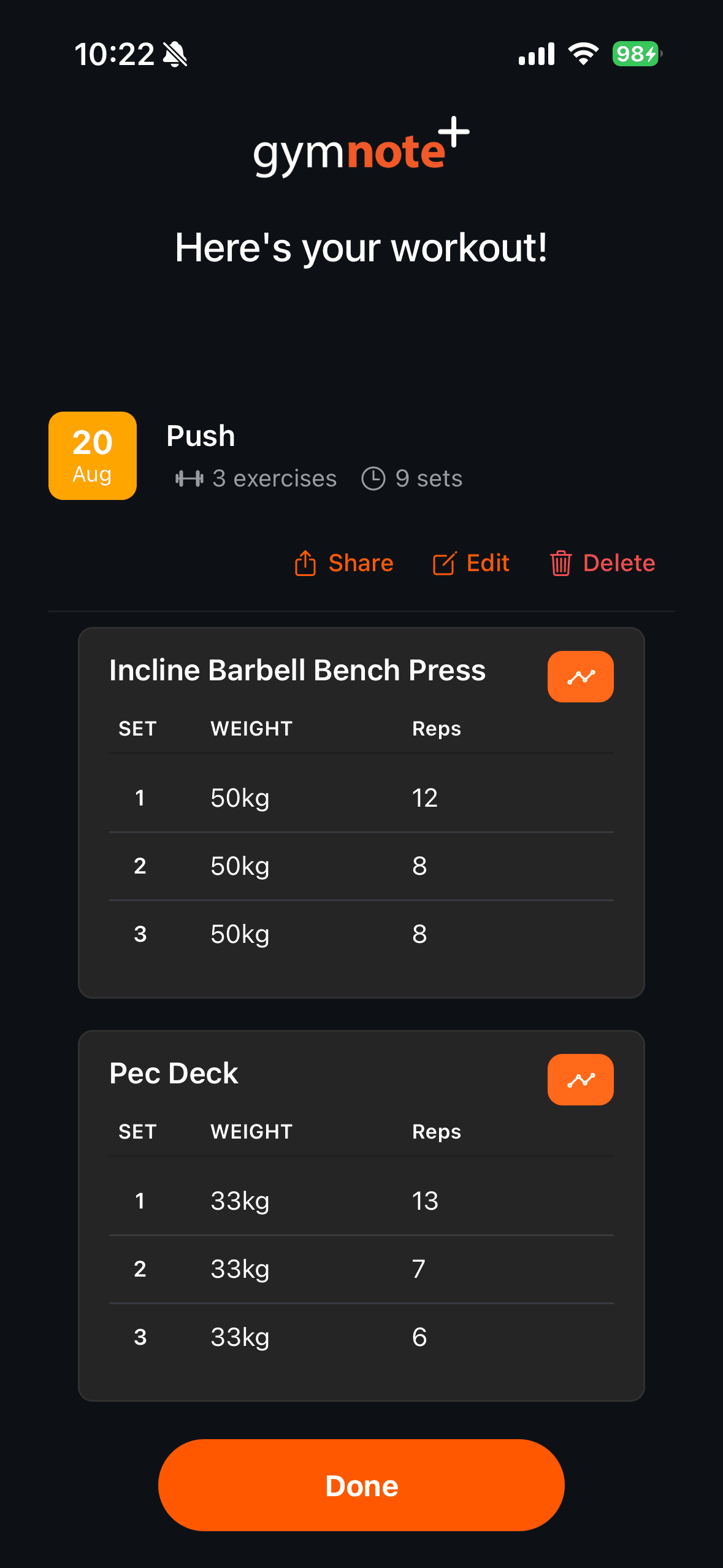
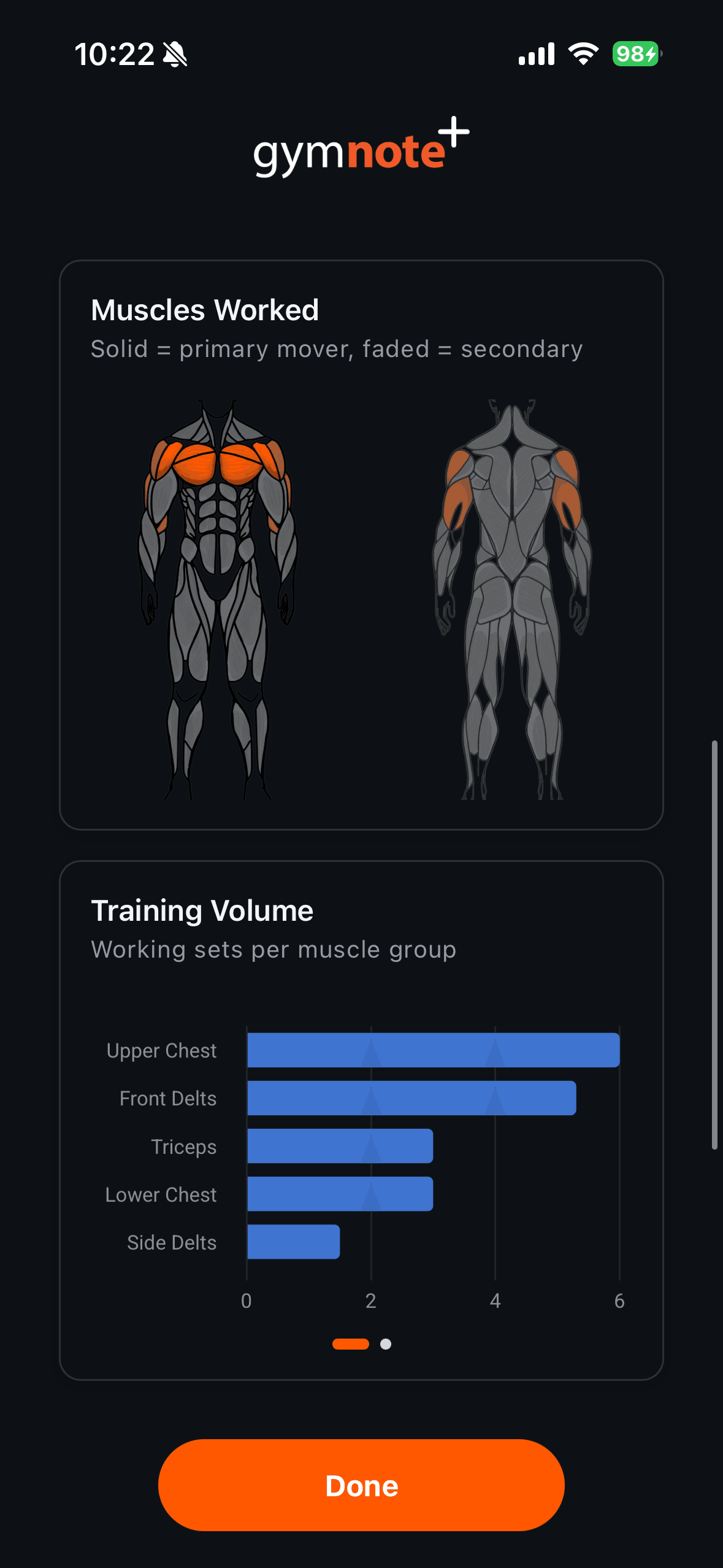
Below that, the exercises stack up one card at a time, each with its own set, weight and reps table. Keep scrolling and you get a Muscles Worked card, which shades primary movers solid and secondary muscles faded, then a Training Volume chart counting the working sets each muscle group picked up. Done sends you to History, where the workout is now sitting under your template's name.
You can see that parsing without installing anything. Paste a session into the free notes to workout translator and it comes back as structured data.
What if you need to change it?
This is the part worth reading twice, because two of these actions reach backwards into workouts you logged weeks ago.
Editing a template is safe. Tap the pencil on its card, change the name or the body, save with the checkmark. You get a Template updated toast. Only the name and the body can be changed; everything else about the template is fixed at creation.
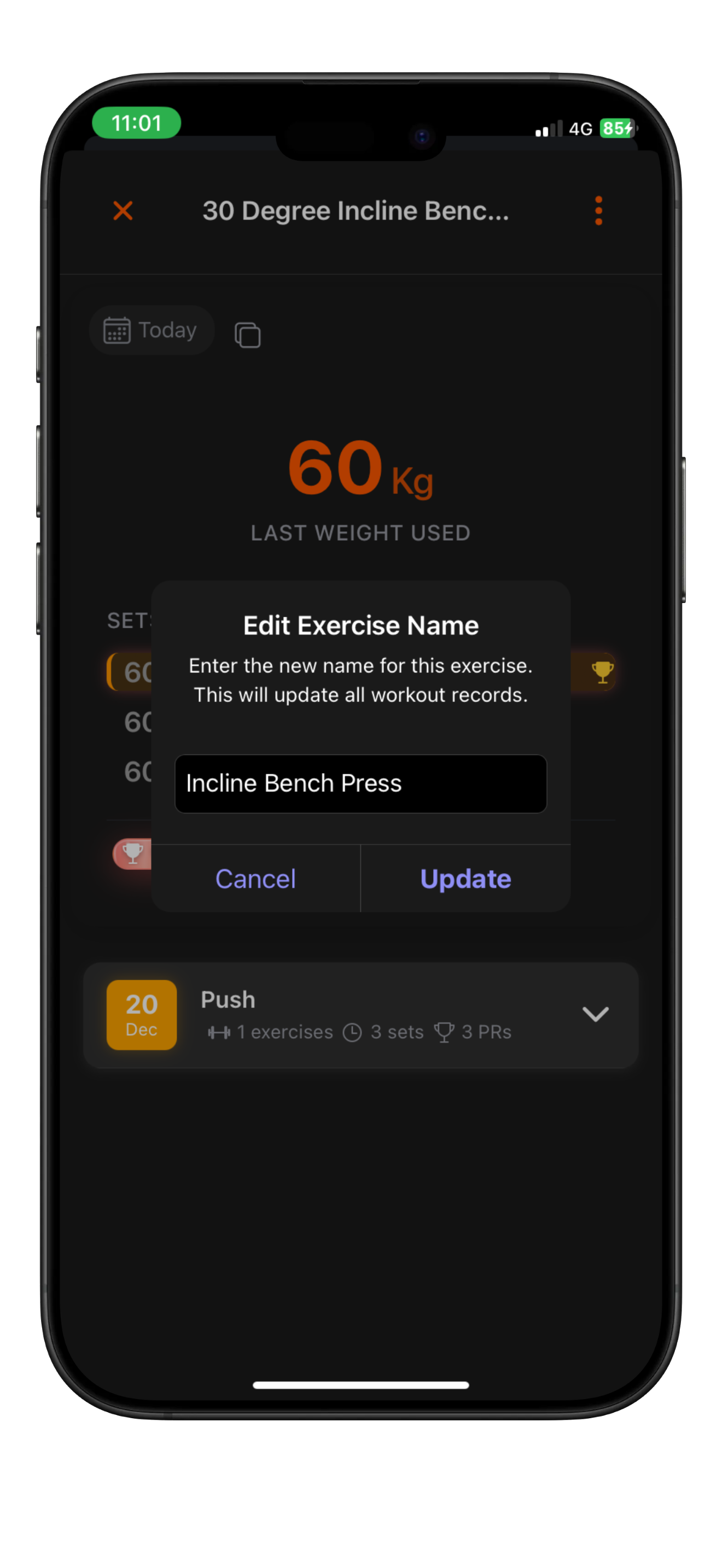
Renaming a template rewrites your history. Every workout you logged from that template is retitled to the new name, quietly, with no confirmation step. Rename "Push Day" to "Chest and Tris" and last month's push sessions are all called Chest and Tris the next time you look. That is usually what you want, since your history stays consistent, but it is not obvious and it cannot be undone by renaming back if you have logged other sessions in between.
Deleting a template leaves your workouts alone. The confirm dialog is titled Delete Template and asks whether you are sure, and it says nothing about your history because it does not need to. Past workouts keep their titles and all their data. They just stop being linked to a template that no longer exists.
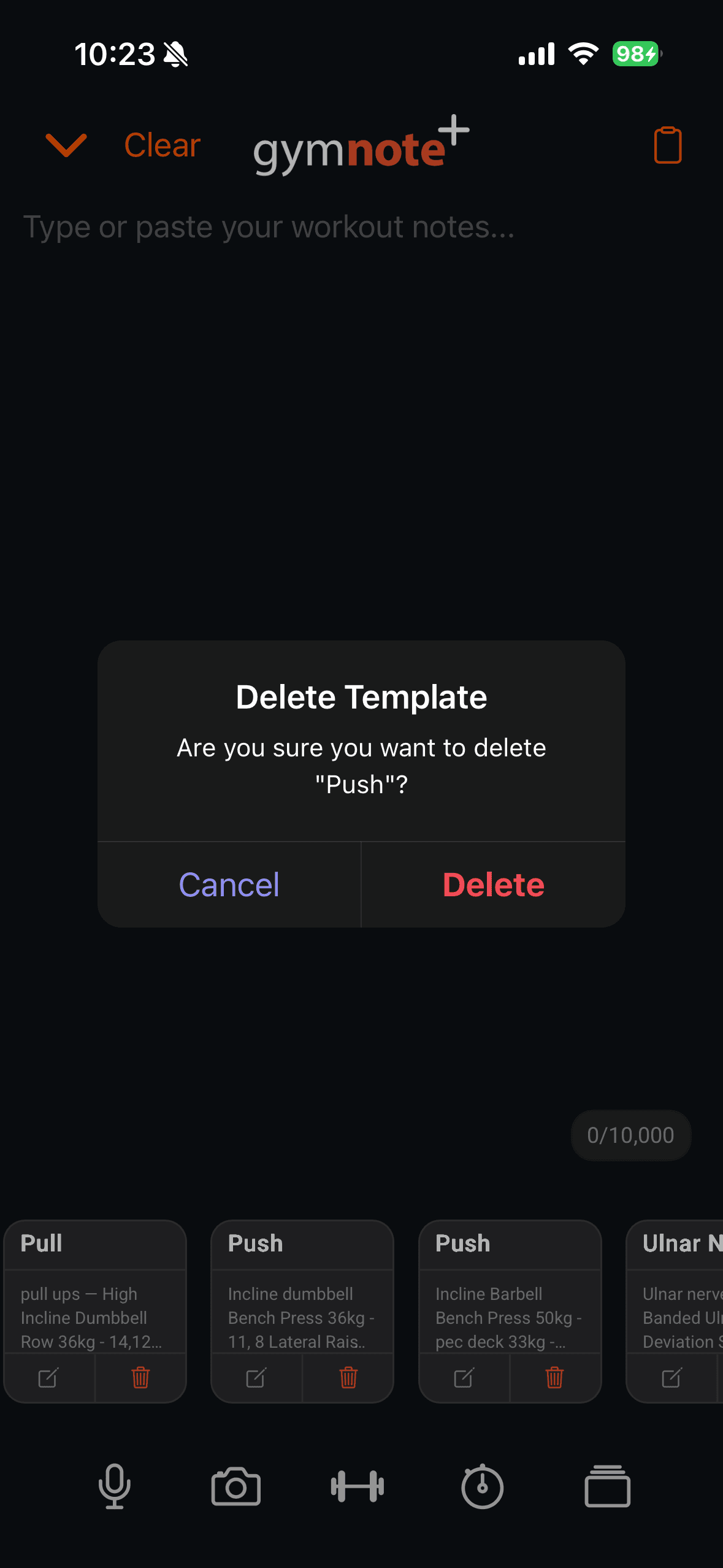
Clear the chip before you delete. If a template is applied to a note you have not translated yet and you delete that template, the chip stays on screen pointing at something that is gone, and the translation fails with a generic error. Tap the ✕ first, or reapply a different template.
Two templates can share a name. The app does not stop you creating a second "Push Day", and when it later tries to match a workout title back to a template it has no way of knowing which one you meant. Keep the names distinct.
Renaming an exercise does not touch your templates. If you rename "DB Bench" to "Dumbbell Bench Press" across your history, the template body keeps saying "DB Bench" and will keep logging it that way. Edit the template by hand after a rename.
Everything except translating a note works offline. Creating, editing, deleting and applying templates all happen on your device. Turning a note into a workout needs a connection.
| Job | Physical Notebook | Notes App | Traditional Gym App | Gym Note Plus |
|---|---|---|---|---|
| Reuse last week's session skeleton | Rewrite it by hand | Copy, paste, delete old numbers | Pick a saved routine | Tap one card |
| Change the plan mid-session | Free, just write | Free, just type | Fight the builder | Free, just type |
| Name the workout consistently | Whatever you scrawled | Whatever you titled it | Locked to the routine | Template name applies automatically |
| See what the session actually trained | Not possible | Not possible | Depends on the app | Muscle map and volume chart |
| Keep old sessions when you delete the plan | N/A | N/A | Often deletes history | Workouts stay untouched |
A simple starting plan
- Start with the demo template. Open the note screen, tap the stacked cards icon, and tap the pencil on the Demo Workout card. Rename it after your most frequent session and replace the body with your own exercises.
- Build the body from a real session. Use the barbell icon to insert exercises with your last logged numbers, so the template opens with weights you actually lift.
- Name it exactly like your split day. If your workout split has a Push day, call the template "Push". Matching names are what link the logged session to that split day. "Day 1" matches nothing and tells the app nothing.
- Tap the template before you type, not after. The body is appended to the end of the note, so applying it first keeps your session in order.
- Check the chip before you translate. If the chip is showing your template's name, the workout will be filed under it. If you see an AI Generated Title badge afterwards, it was not applied.
Where Gym Note Plus fits
The pitch has never been that you should learn a new way to log. It is that the way you already log, plain text typed on your phone between sets, is fine, and the tracking should be built on top of it rather than replacing it.
Templates are the smallest version of that idea. You keep typing sessions in free text. The app just stops making you retype the same four exercise names every week, and gives your history a consistent name to sort by. If you want to try it, Gym Note Plus is on the App Store.
Tapping a template does not commit you to a plan. It just means tonight's note starts half written.
Frequently Asked Questions
Why is my workout not showing the template's name?
The template chip was not applied when the note was translated. Applying a template sets a chip at the top of the note, and that chip clears itself after every successful translation. If the finished workout shows an AI Generated Title badge, no template was attached when you hit translate.
Can I have more than one template on a free account?
No. A free Gym Note Plus account has a single template slot, and the Demo Workout template created with your account already occupies it. Editing that template into your own session costs nothing. Creating a second one opens the upgrade screen. Pro accounts get unlimited templates and a 10,000 character body.
Does renaming a template break my old workouts?
It does not break them, but it does change them. Every workout logged from that template is retitled to the template's new name, with no confirmation prompt. All the exercise, set and weight data is untouched. Only the workout title changes, so your history stays consistent under one name.
What happens to my history if I delete a template?
Nothing is lost. Deleting a template removes the template only. Every workout you logged from it keeps its title, exercises, sets, weights and personal records, and stays in your History exactly as it was. The workouts simply stop being linked to the deleted template.
Do templates tell me what weight to lift?
Not by themselves. A template gives you back whatever text you saved in it, including any numbers you typed. The barbell icon in the template editor inserts your last logged numbers for an exercise. The Workout to Beat widget shows real targets, but only when your template's name matches a day in your active split.
Can I use templates offline?
Yes, for everything except translating. Creating, editing, deleting and applying templates all work with no connection, because Gym Note Plus stores them on your device. Turning the finished note into a structured workout needs a connection, so the note waits until you are back online.
Final Takeaways
- A template is a name plus free text. It holds no structure and no schedule, and nothing in it counts as exercise data until you translate the note.
- The name is the point. It overrides the AI's guessed title, so your history sorts under names you chose.
- Apply it before you type. The body appends to the end of the note.
- The chip clears after every translation. Reapply the template for the next session.
- Renaming reaches backwards. Every workout logged from that template gets the new title.
- Match template names to your split day names. That match is what files the workout under a split day and keeps your Workout to Beat targets working.
- Deleting is safe. Your workouts keep everything except the link.

Josh Ibbotson
Josh is the creator of Gym Note Plus, building tools that make workout tracking as simple as taking notes.
Ready to try it out?
Download Gym Note Plus and start tracking your workouts the way you want.
Download on App Store