
Quick answer: Open the Exercises tab, tap the exercise, tap the ellipsis in the top right, then choose Rename Exercise or Merge with Another Exercise. Renaming updates the name in every workout that used it. Merging folds a duplicate into the exercise you pick, and future translations remember your choice.
Tracking and maintaining clean exercise names is important if you want consistent workout logs. Gym Note Plus makes it easy to rename or merge exercises across all your workouts in just a few clicks.
How to rename or merge exercises across all workouts in Gym Note Plus
Over time, exercise names can get messy. You might realise an exercise name is slightly wrong, too long, or inconsistent across your workouts.
For example, you may have been using "30 Degree Incline Bench Press" but later decide that "Incline Bench Press" is clearer and cleaner.
The issue is that this exercise might already exist in many workouts. Editing each workout manually would be slow and frustrating. You might also already have an exercise called "Incline Bench Press" and want both exercises to be treated as the same movement.
Gym Note Plus solves this with built in exercise renaming and merging.
Rename an exercise everywhere it is used
Renaming an exercise updates its name across all workouts automatically.
Step by step
- Open the Exercises tab.
- Tap the exercise you want to rename.
- Tap the ellipsis in the top right corner.
- Select Rename Exercise.
- Enter your new exercise name.
- Save the change.
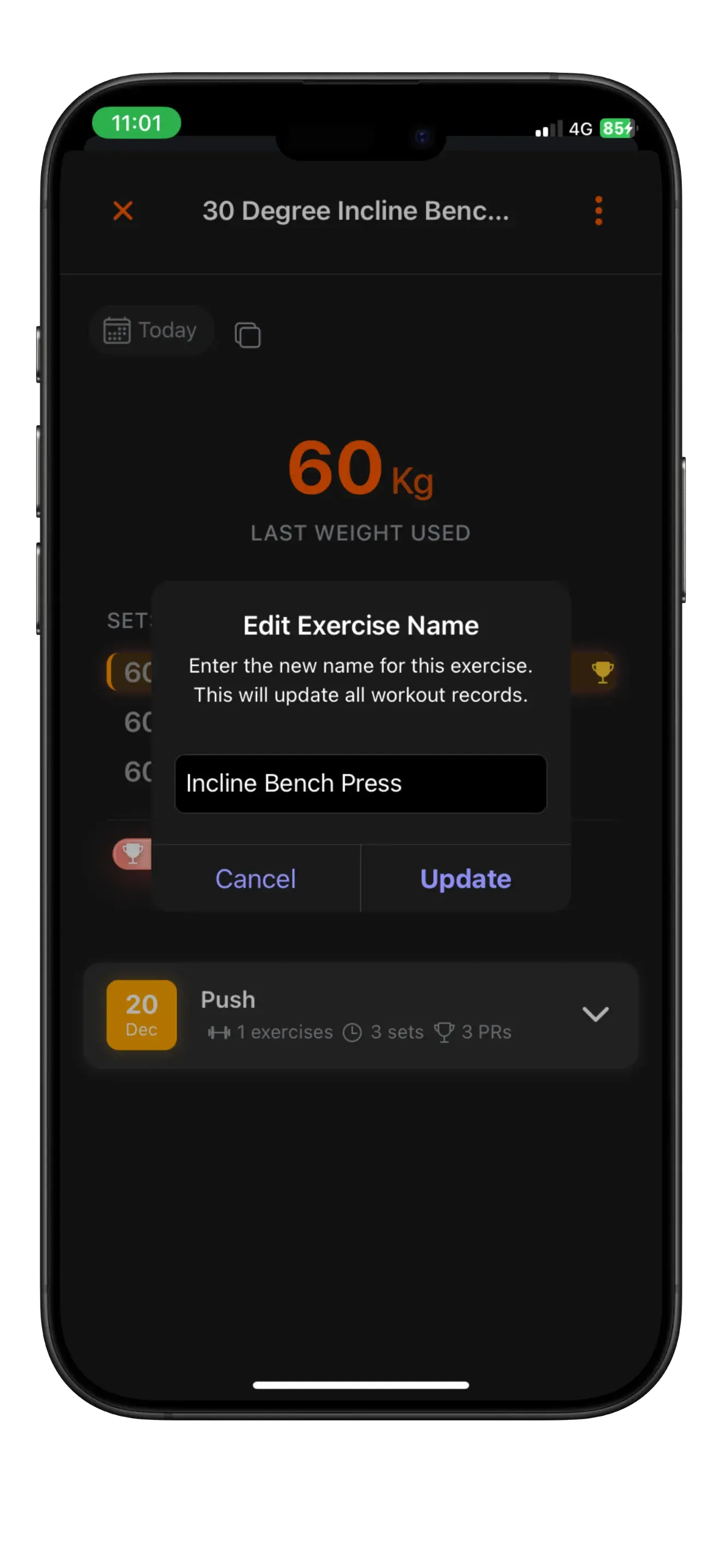
Once saved, every workout that previously used "30 Degree Incline Bench Press" will now display "Incline Bench Press". No manual edits required.
Merge two exercises into one
If you have duplicate exercises and want to combine them, merging is the best option.
Step by step
- Open the Exercises tab.
- Tap the exercise you want to merge.
- Tap the ellipsis in the top right corner.
- Select Merge with Another Exercise.
- Choose the exercise you want to merge into.
The selected exercise becomes the final exercise name. All workouts that used the old exercise will now reference the chosen one.
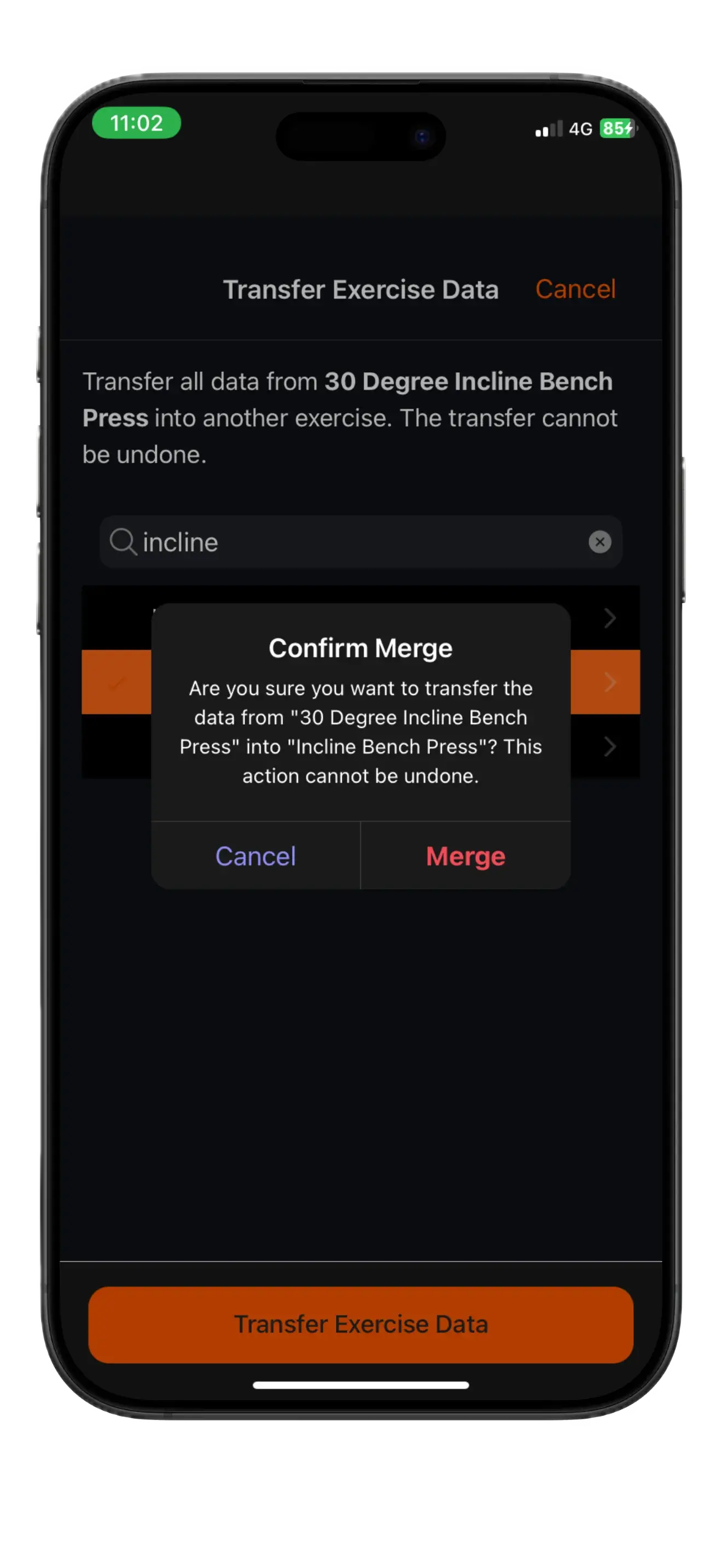
This is perfect for cleaning up duplicates and keeping your exercise list consistent.
Tips and tricks
- Renaming an exercise to the same name as an existing exercise behaves the same as merging them.
- Gym Note Plus keeps track of exercise renames and merges so future translations and updates continue using your preferred exercise names instead of reverting to old ones.
- Most duplicates start at the translation step, when the same lift gets written two ways. Paste a session into the free notes to workout translator to see which names your shorthand produces before it lands in your exercise list.
Conclusion
With built in renaming and merging, keeping your exercise list clean takes seconds instead of hours. Change it once and every workout stays consistent automatically.

Josh Ibbotson
Josh is the creator of Gym Note Plus, building tools that make workout tracking as simple as taking notes.
Ready to try it out?
Download Gym Note Plus and start tracking your workouts the way you want.
Download on App Store