

How to Set Up a Workout Split in Gym Note Plus
Quick answer: Go to More, tap My Workout Splits, tap Create New Split, give it a name, then add one training day at a time (Push, Pull, Legs). The new split becomes your active one straight away. From then on the app knows which session is next and shows you that session's last numbers to beat.
Most people who log in a notes app know roughly where they are in the week. Push on Monday, pull on Wednesday, legs on Friday, repeat.
The bit that gets lost is what you lifted last time on that exact day. You scroll back through three weeks of notes looking for the last leg session, give up, and guess the weight.
Setting up a split fixes that. It takes about a minute.
What is a workout split in the app?
A split is a name plus a list of training days, in order. That is the whole thing. "Push Pull Legs" with the days Push, Pull, Legs. Or "Upper Lower" with Upper, Lower.
There are no dates in it, and no exercise lists. You are not building a program. You are telling the app the names of your sessions and the order you rotate through them.
That small piece of information does two jobs. It lets the app label the workouts you log, and it lets the app work out which session is coming next.
The order matters more than the day names. The app rotates through the list you typed, so Push, Pull, Legs behaves differently from Legs, Push, Pull.
How do you create a split?
You can do this during onboarding or at any point afterwards.
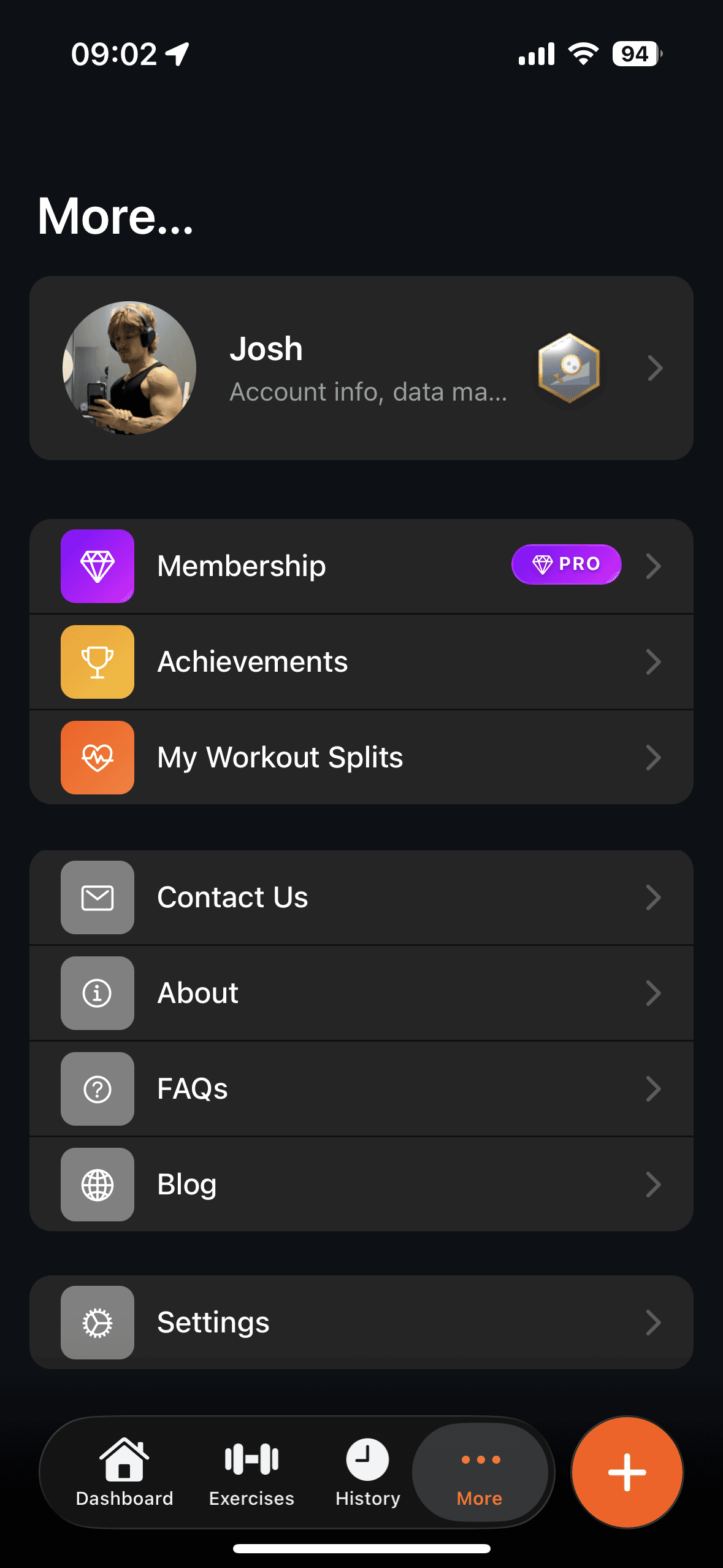
Step by step
- Open the More tab.
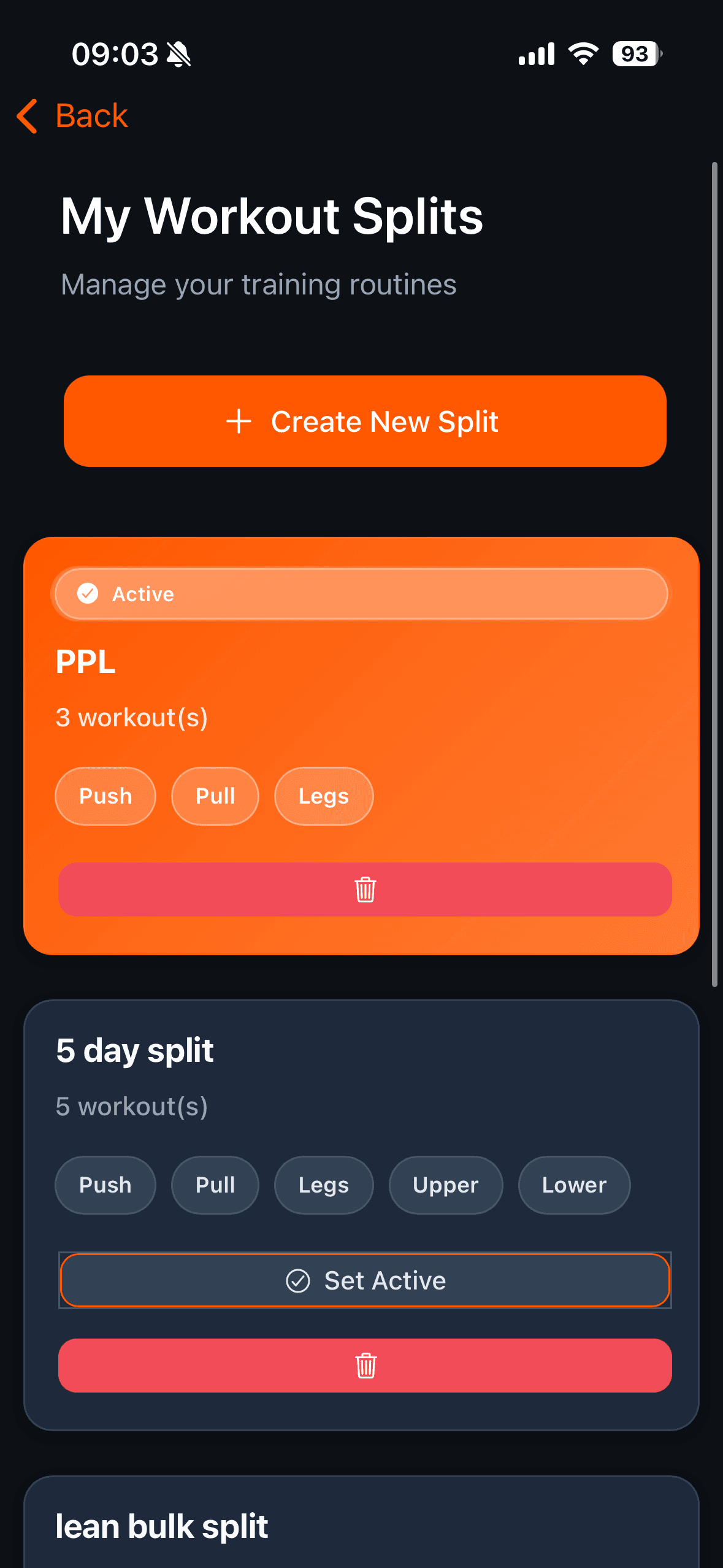
- Tap My Workout Splits.
- Tap Create New Split.
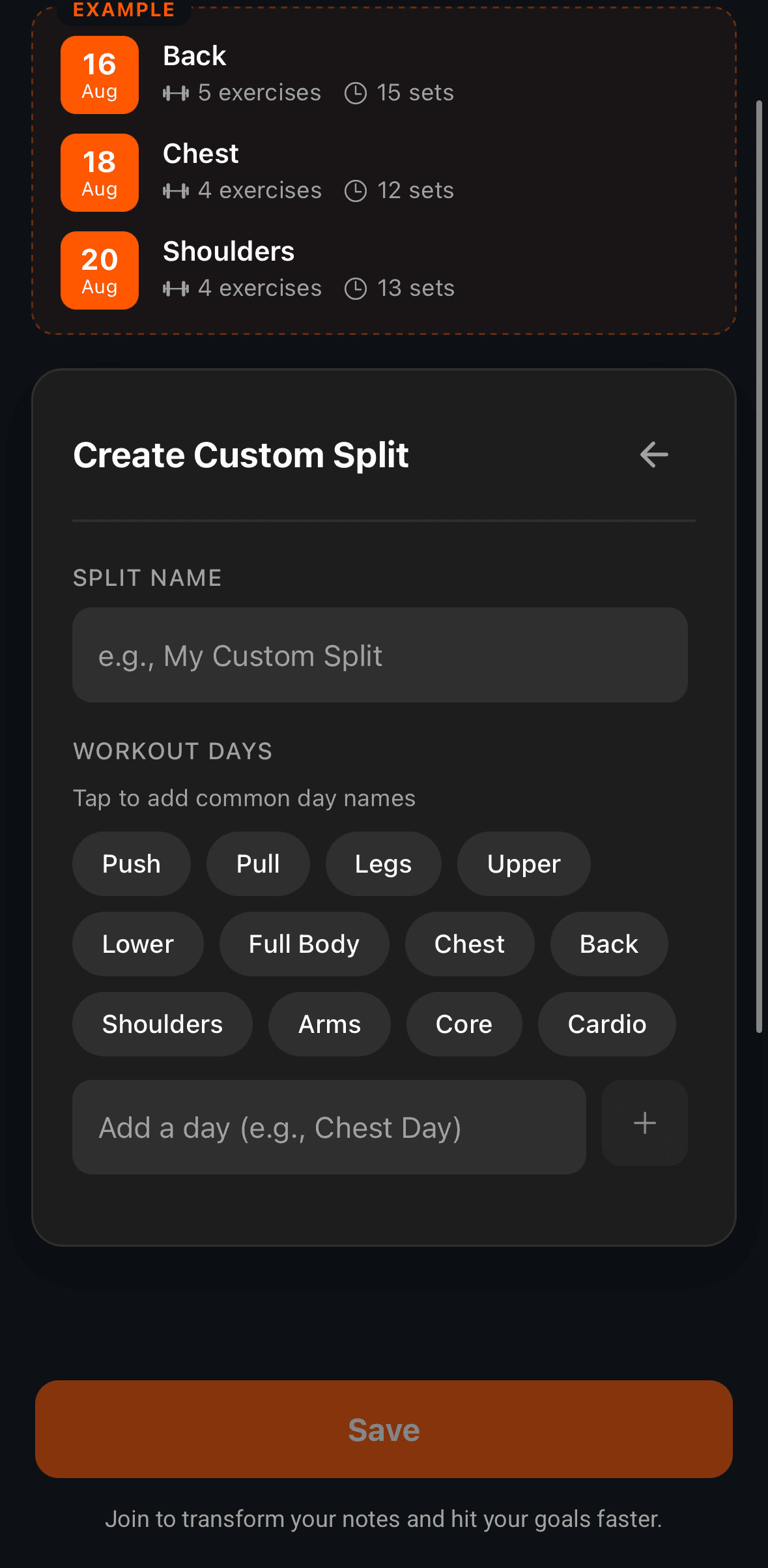
- Type a name under Split Name, for example "Push Pull Legs".
- Under Workout Types, type your first day and tap Add. Repeat for each day.
- Tap Create Split.
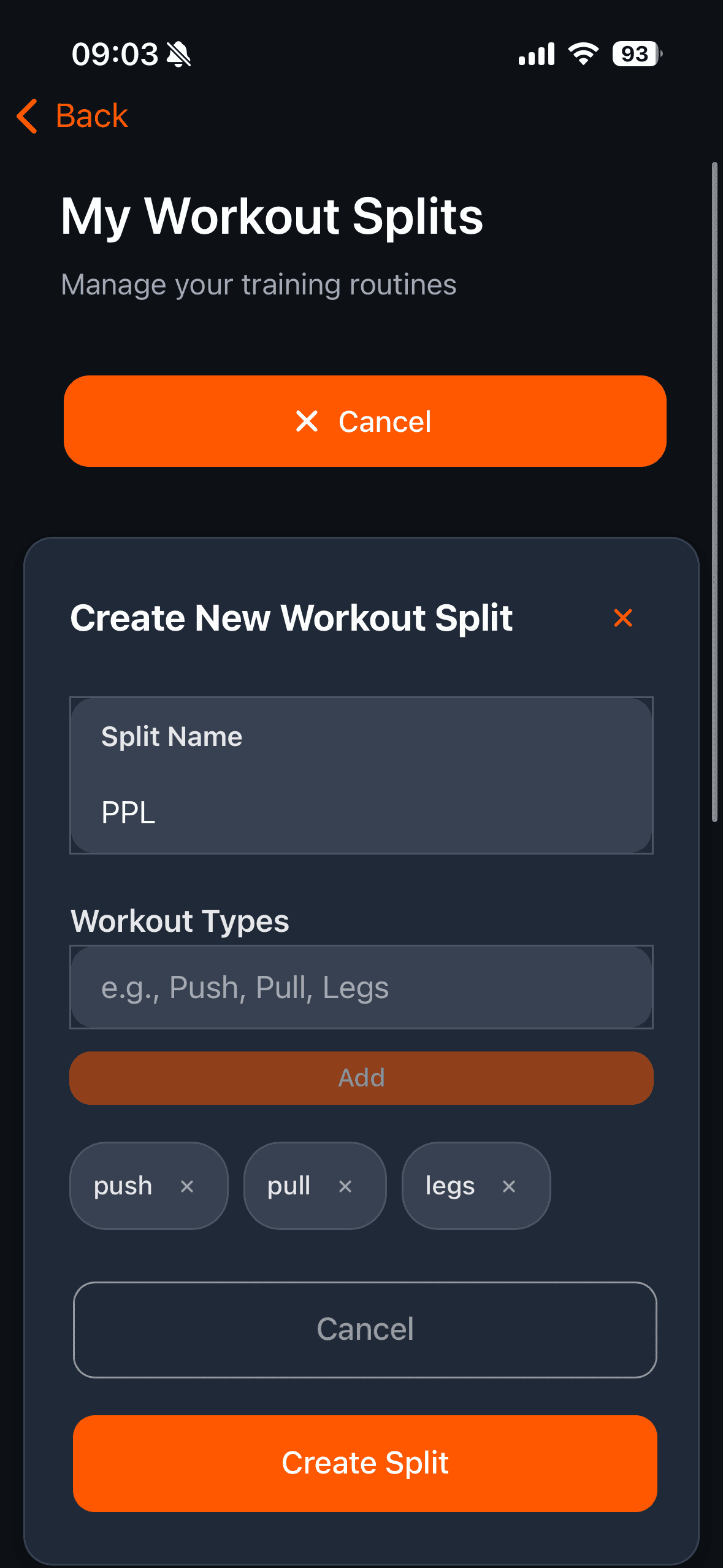
Each day you add shows up as a removable tag, so you can fix a typo before saving. The form will not let you save without a name and at least one day.
Creating a split makes it active immediately. There is no separate confirm step. If you already had a split, the new one takes over.
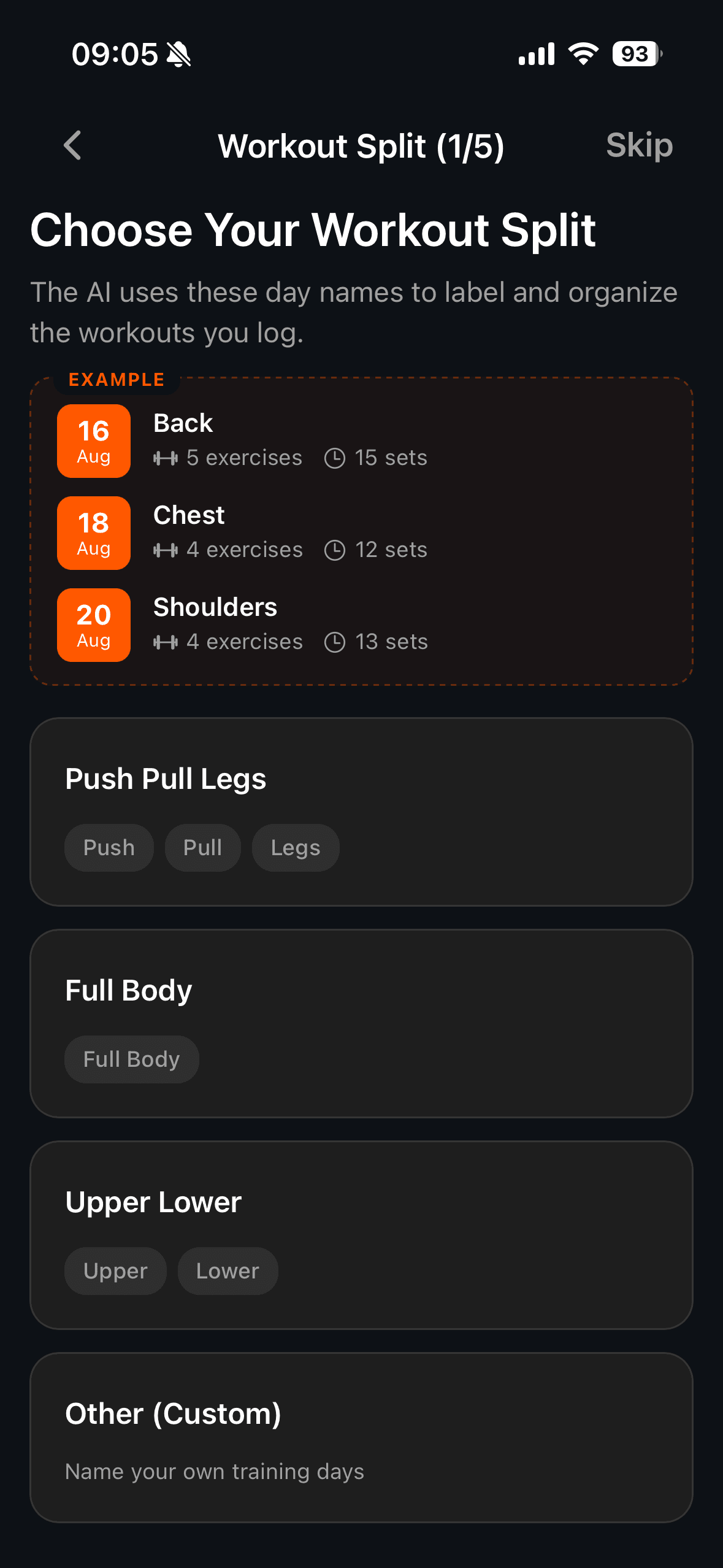
If you set one up during onboarding instead, you get four ready-made choices: Push Pull Legs, Full Body, Upper Lower, and Other (Custom).
Why do the day names matter so much?
Name your days after what you train, not when you train them. Push, Pull, Legs, Chest, Cardio all work. Day 1, Session A, and Monday do not.
This is not a style preference. Your split's day names get passed to the AI that reads your notes, so when you write "leg day" at the top of a note, it can match that to a real day in your split and file the workout there. A name like "Day 1" tells it nothing, so it cannot match anything.
The app will actually warn you about this while you type. Enter something like "Day 2" and a tip appears explaining that descriptive names let it label and link your workouts automatically.
The custom split form leans the same way, offering Push, Pull, Legs, Upper, Lower, Full Body, Chest, Back, Shoulders, Arms, Core, and Cardio as one-tap options. Every one of them describes a body part or a movement pattern.
Keep the wording steady. The matching is literal. If your split says "Legs" and your notes say "leg day" one week and "quads" the next, some sessions will not get linked, and the ones that go missing are exactly the ones you wanted to compare against.
How does the app work out your next workout?
This runs in the background every time you open the app, and it is simpler than you would expect.
It looks at the last session you logged, then takes the next day in the list. Log Push, and Pull is next. Log Pull, and Legs is next. Log Legs, and it wraps back to Push.
That covers normal weeks. Real training is messier, so there are two fallbacks.
If you have gone out of order, it stops trusting the rotation. The app checks your recent sessions against the order you saved. If the sequence does not line up, it switches approach.
Then it picks the day you have gone longest without doing. If there is a day in your split you have never logged at all, that one comes first. Otherwise it finds the day with the oldest last-trained date, which is usually the one you skipped.
So if you run Push, Pull, Push, Pull for two weeks and never touch legs, legs is what surfaces. You do not have to reset anything.
A few things worth knowing:
- Rest days are not part of it. A split is a cycle, not a calendar. Taking a week off does not change what comes next.
- A one-day split is fine. If your split is just "Full Body", every session points back to full body, which is correct.
- Workouts you logged before the split existed are not linked. The app does not go back and retag old sessions, so give it a cycle or two of fresh logs.
What does "Workout to Beat" actually show you?
Once the app knows which session is next, it pulls up the last time you did that session and puts it in front of you.
It is a full copy of that workout, not a summary. Every exercise, every set, and the weights and reps you actually hit.
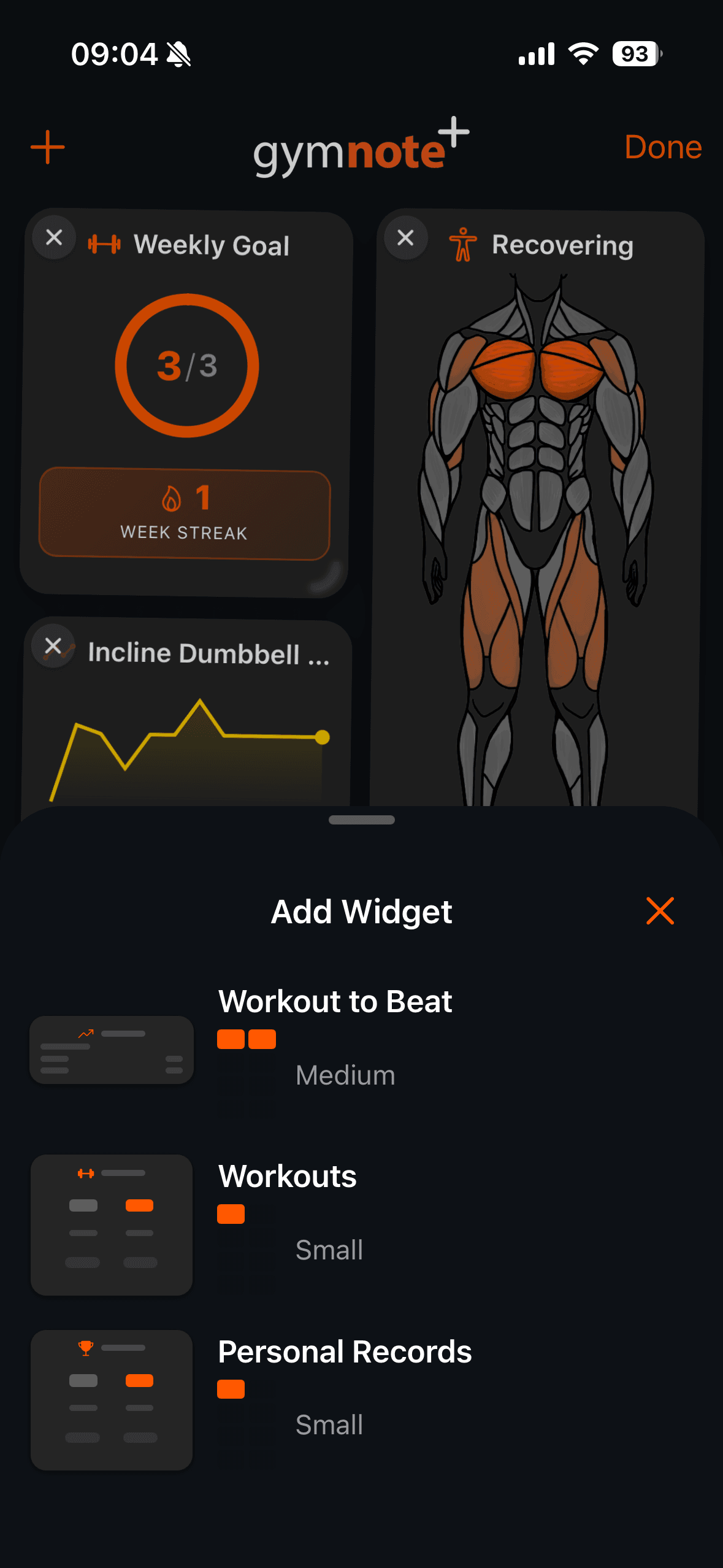
Add the widget from your dashboard. Press and hold the dashboard to start editing, then tap the + in the top corner and pick Workout to Beat. Choose a size big enough to list your exercises, because the smallest one shows only the split name and the date.
On the dashboard the widget shows the date, the split day, and each exercise with its set count. A trophy and a number next to an exercise means that session holds records you would have to beat.
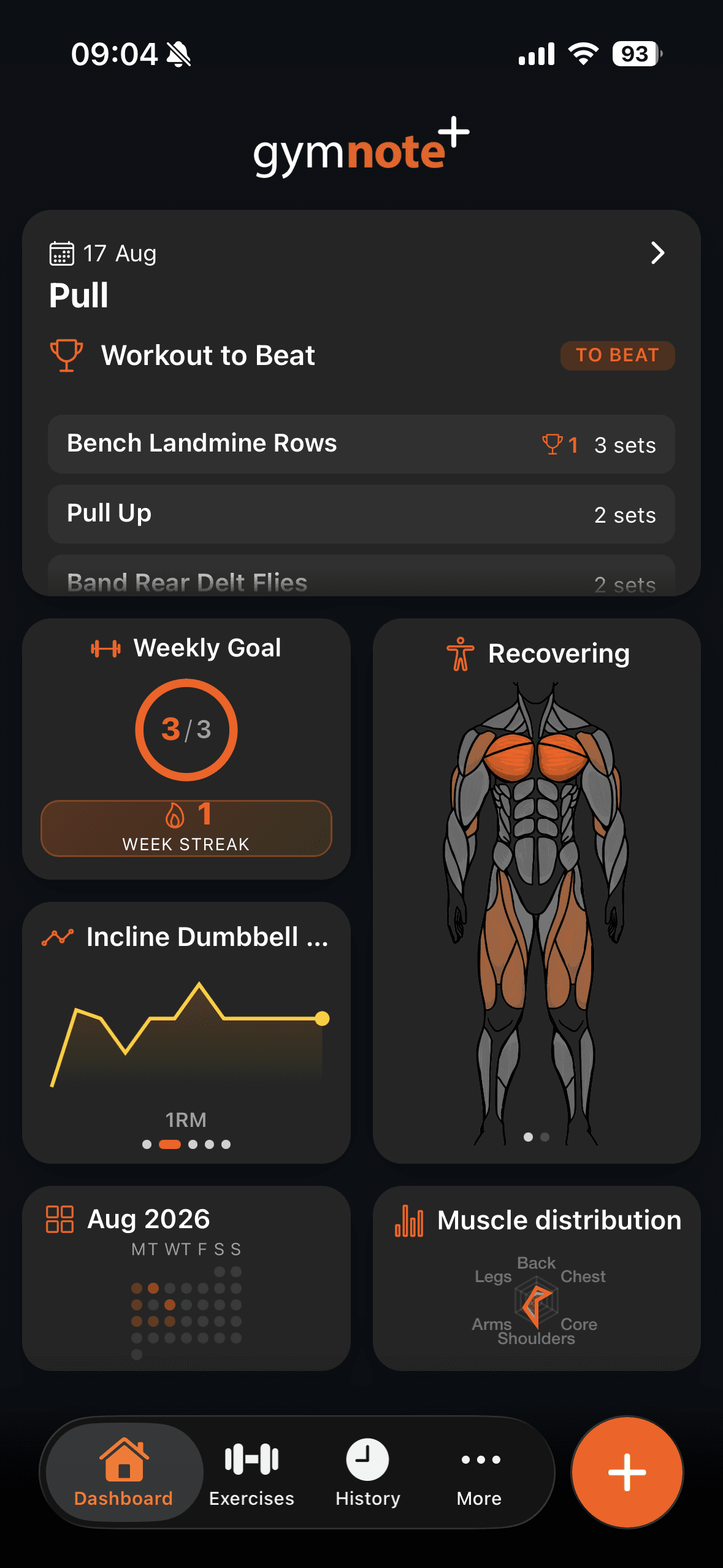
The badge tells you which mode you are in. If it says To Beat, the app is using your split and showing you the matching session. If it says Previous, it is just showing your most recent workout, which means no split is active yet.
Tap the widget and you get the whole session laid out: each exercise with its sets in a table, weights and reps in columns, and your best set highlighted in orange. Bodyweight sets show as BW.
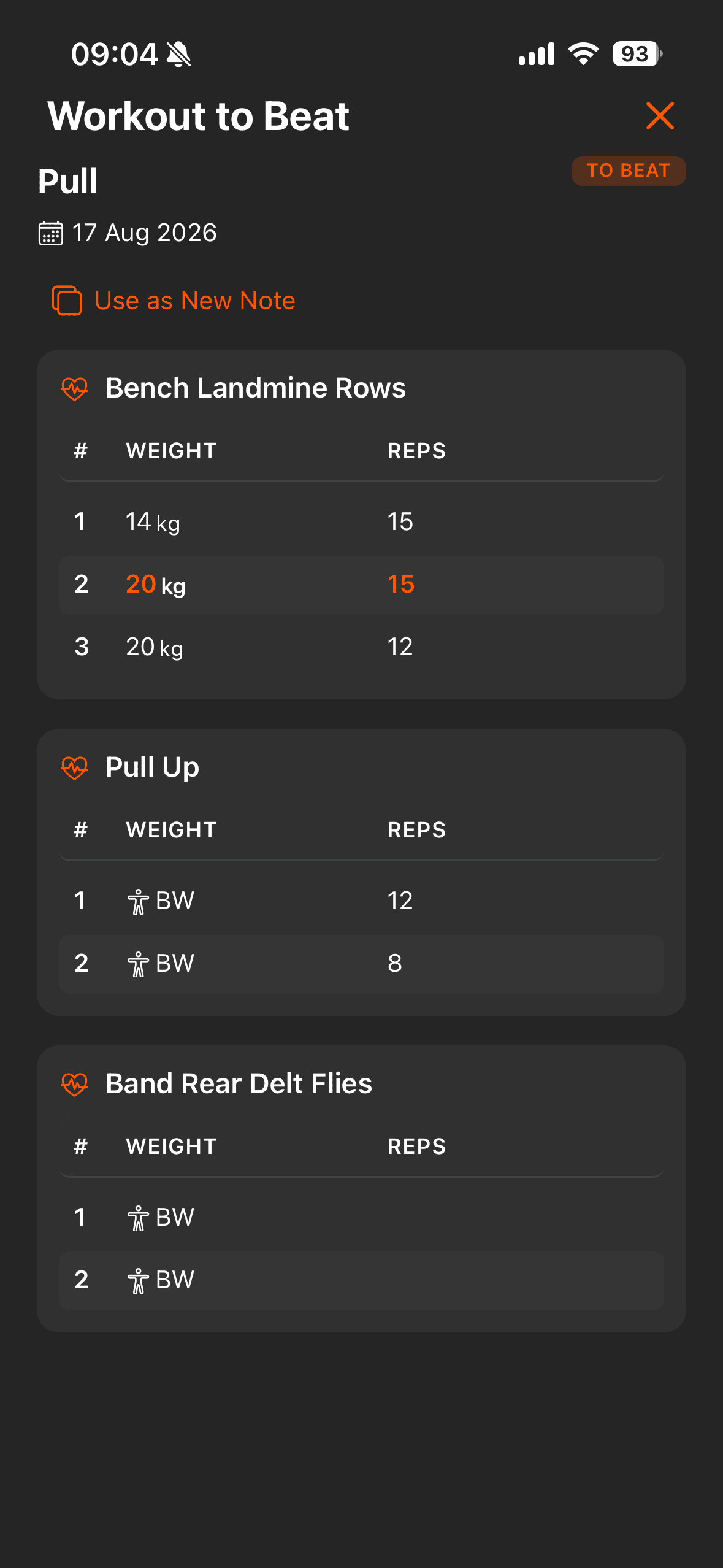
There is also a Use as New Note button at the top. It opens a fresh note pre-filled with the raw text of that workout, so you edit the numbers upward rather than typing the whole session out again.
Here is how that compares to the alternatives:
| Where your log lives | Finding last week's leg day | Knowing what to beat |
|---|---|---|
| Physical notebook | Flip back through pages | Whatever you can read |
| Notes app | Scroll and search by memory | Read it off the note |
| Traditional gym app | Open a program, find the day | Sometimes shown |
| Gym Note Plus | Already on the dashboard | Last session, with PR sets marked |
What if you need to change a split?
Splits cannot be edited once they are saved. There is no rename, and no way to reorder the days. If you want a different order or a different name, create a new split and it becomes active.
Your old splits stay in the list. Each card shows its name, the days it contains, and how many workouts are attached to it. The active one carries an Active badge, and any other split has a Set Active button.
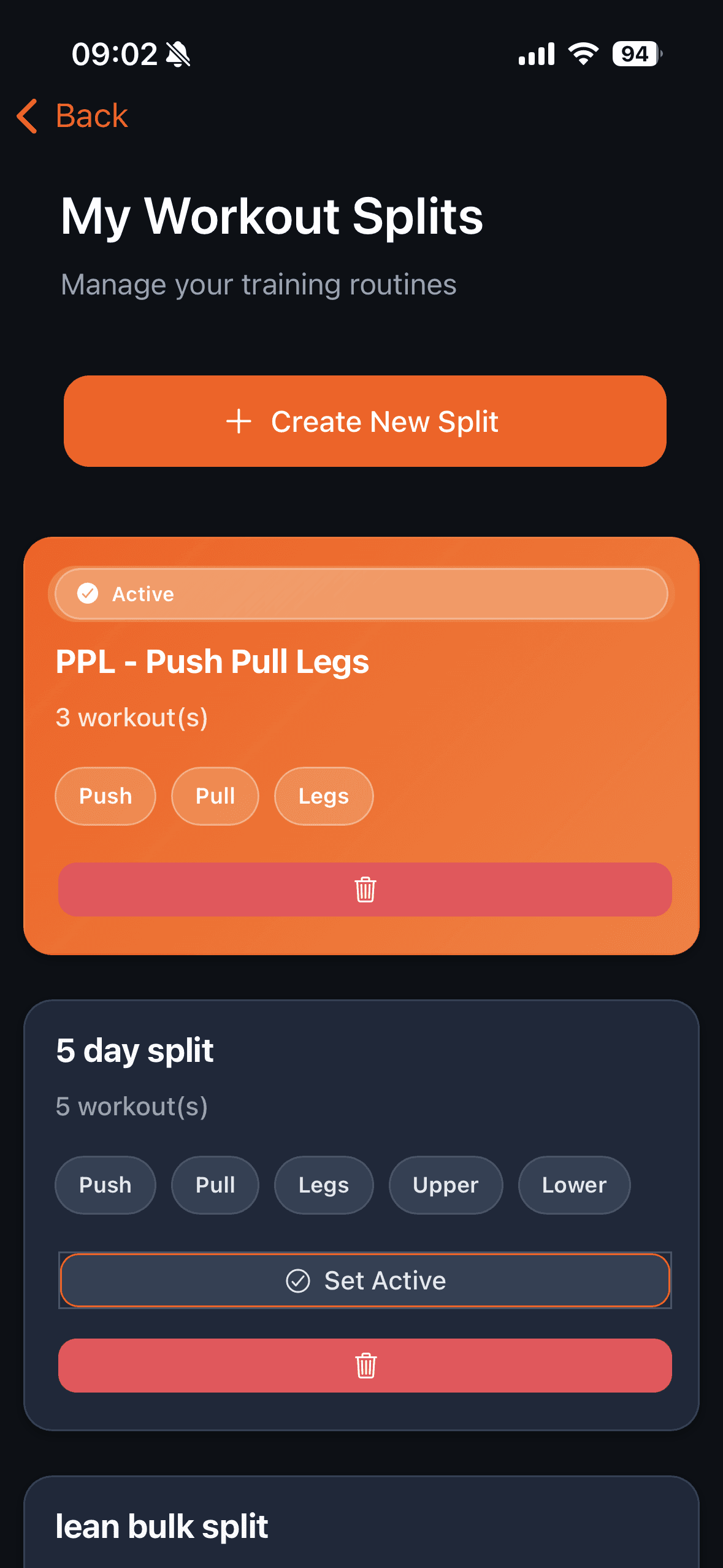
Deleting the active split turns the feature off without warning you. The widget drops back to showing your most recent workout with a "Previous" badge, rather than the matching session. Nothing you logged is deleted, but the link is gone.
Switching splits effectively starts the count again. Only workouts logged under the split that is currently active count toward the rotation, so expect a cycle or two before the widget is useful again.
A simple starting plan
- Create the split before you log anything else. Sessions logged beforehand will not be linked to it.
- Use three or four descriptive day names. Push, Pull, Legs is a good default if you are unsure. If you want a second opinion on how your week actually covers each muscle, get a free private link to the workout plan optimizer.
- Write the day name at the top of every note. Use the same word every time, matching your split exactly.
- Add the Workout to Beat widget at its largest size, so your exercises are visible without opening anything.
- Log one full cycle before you judge it. The app needs at least one session per day before it has anything to show you for that day.
Where Gym Note Plus fits
If you already log in Apple Notes or a notebook, none of this asks you to change how you write. You still type "leg day, squat 100x6, 100x6, 100x5" the way you always have. The split is what turns that line into something the app can find again later.
Gym Note Plus reads your plain-text notes and builds the structure behind them:
- Your sessions get labelled by split day automatically
- Personal records get detected per exercise, per set
- The next session's target appears on your dashboard without you searching for it
- Your history stays readable as plain text underneath
If you want to see what that looks like before setting anything up, paste your last workout into the free notes to workout translator.
The point of a split is not the plan. It is knowing, without looking, what you have to beat today.
Frequently Asked Questions
Do I need a workout split to use Gym Note Plus?
No. Without a split, the app still logs everything and still tracks personal records. The dashboard widget shows your most recent workout with a "Previous" badge instead of matching the session type. Adding a split is what changes it from "here is your last workout" to "here is the workout you are about to repeat".
Can I change the order of days in a split?
Not directly. Gym Note Plus saves the order you added the days in and does not offer a reorder or rename option. To change the order, create a new split with the days in the sequence you want, and it becomes the active split as soon as you save it.
What happens if I skip a training day?
Gym Note Plus notices that your recent sessions no longer follow the saved order and switches to picking the day you have gone longest without training. A skipped leg day resurfaces on its own, so there is nothing to reset or correct manually.
Why is my workout not showing up under the right split day?
The day name in your note has to match the day name in your split. Gym Note Plus matches them literally, so "Legs" in your split and "leg day" in your note may not connect. Keep the wording identical each time, and check that the workout was logged after you created the split.
How many days can a workout split have?
There is no fixed limit, and a single-day split like "Full Body" works fine. Three to six days is the practical range for most people, because the app needs at least one logged session per day before it can show you anything to beat for that day.
Final Takeaways
- A split is a name and an ordered list of day names. It is not a program, and it holds no exercises or dates.
- Descriptive day names are what make it work. Push, Pull, and Legs can be matched to your notes. Day 1 and Monday cannot.
- The next session is the next day in your list, unless your recent training has drifted out of order, in which case the app surfaces the day you have neglected longest.
- Workout to Beat shows the real session, every set and rep, with your best sets marked.
- Splits cannot be edited. Create a new one to change the name or the order.

Josh Ibbotson
Josh is the creator of Gym Note Plus, building tools that make workout tracking as simple as taking notes.
Ready to try it out?
Download Gym Note Plus and start tracking your workouts the way you want.
Download on App Store